Selecting and editing
Select notes, beats and bars, then change them, copy them, move them or take them away.
Available on iPad, iPhone and Mac.

What you select is what the next button changes: a duration, an effect, a cut or a copy. You select with the Select tool, or while you write, from the cursor.
The Select tool
The Select tool (the arrow) picks what is already on the score: notes, rests, slurs, symbols, text. Choose it in the tool selector (the first row of the input panel on iPhone), or in View › Tool › Select.
- TapClick a note, or anything else on the score, to select it. TapClick the empty paper to select nothing.
- Touch and hold, then dragDrag from the empty paper to draw a box: what it crosses is selected.
- Change it: with something selected, the tools’ categories show at the bottom, and their buttons apply to the selection.
Touch and hold a selected note, then drag,Drag a selected note to move it. With notes selected, the arrow keys ↑ and ↓ move them up or down the staff a step at a time (on a keyboard connected to the iPad).
The capsule beside the selection opens its options: the note’s, the rest’s.
Selecting while you write
In Edit, you select from the cursor without changing tools:
- Turn on ⇧ on the keypad, then move with the joystick or the arrows: the selection stretches from where the cursor was over the beats you pass. With Alt on too, it is a box of strings and beats in one bar.
- Or touch and hold the tab, then drag across the beats.
- Turn ⇧ off, and the next move puts the cursor back on one beat.
- ⇧← and ⇧→: the selection stretches over the beats you pass.
- ⇧⌥ with the arrows: a box of strings and beats in one bar.
- ⇧⌘ with the arrows: whole bars of the track.
- Or drag across the tab.
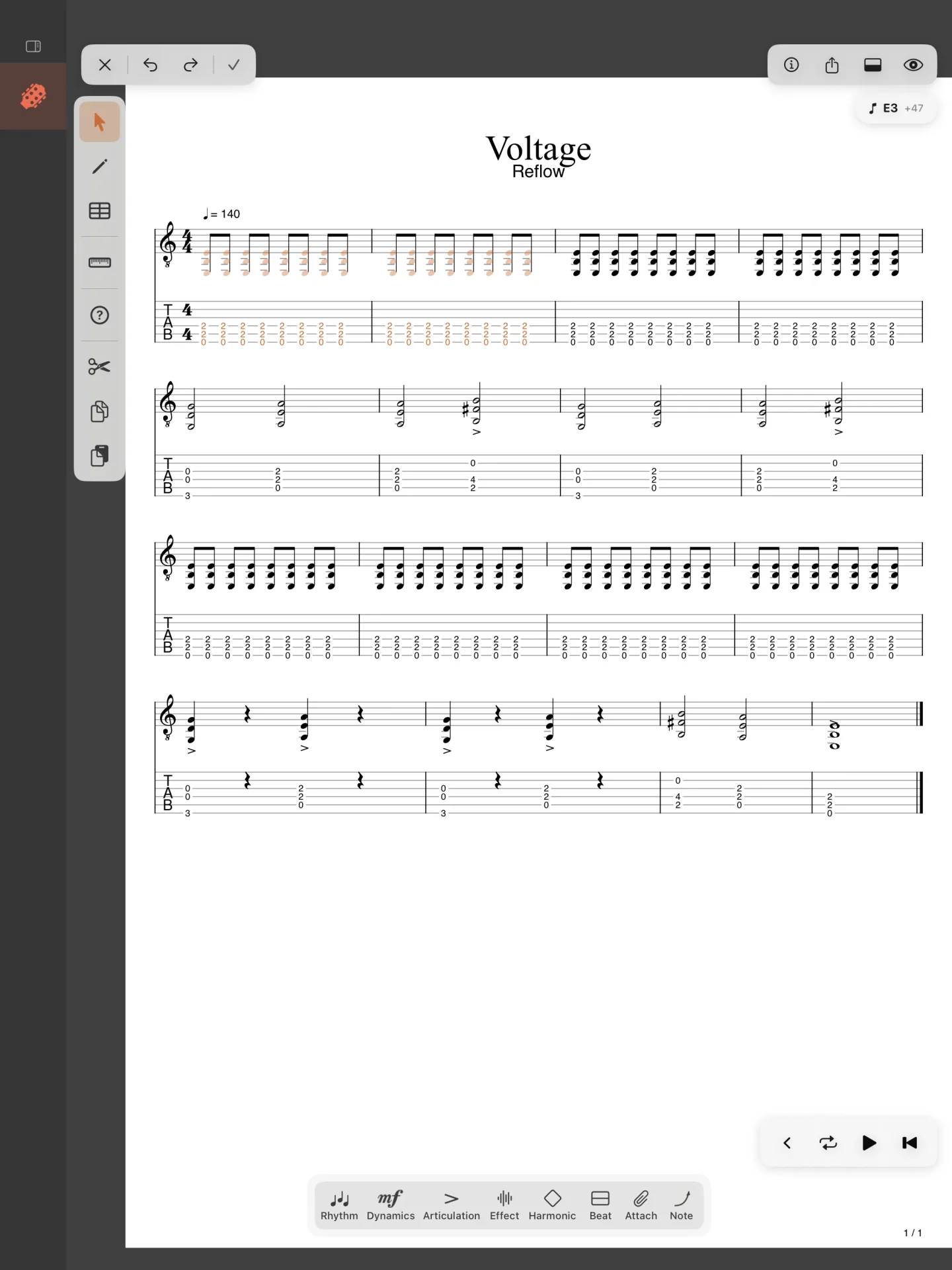
What you selected is lit; a duration, a dot, an effect or a delete then applies to all of it.
Cut, copy, paste and delete
Cut, Copy and Paste are at the right of the tools’ categories, and at the right of the input panel’s first row on iPhone, and in the Edit menu: ⌘X, ⌘C and ⌘V.
- Copy keeps what is selected; Cut keeps it and takes it off the score.
- Paste puts it at the cursor, or at the first bar selected.
To delete, tap ⌫ on the keypadpress ⌫: in Edit it takes the note at the cursor (and the selected notes); with the Select tool, what is selected. Whole bars are cut, copied and deleted with the Measure tool (see Bars).