Exporting
Send a score as a PDF, an image, MusicXML, Guitar Pro, MIDI or audio, and print it.
Available on iPad, iPhone and Mac.
Your device

On this page
Every way a score leaves Reflow is in one sheet: a format, its options, then the file.
Exporting a score
- Open the Export sheet: tap Export (the square with an arrow) in the top bartap Export in the top bar, or, with the iPhone upright, the eye in the top bar, then ExportFile › Export › Export… ⇧⌘E, or Export in the window’s toolbar.
- Choose a format among the cards. The sheet opens on the one you used last.
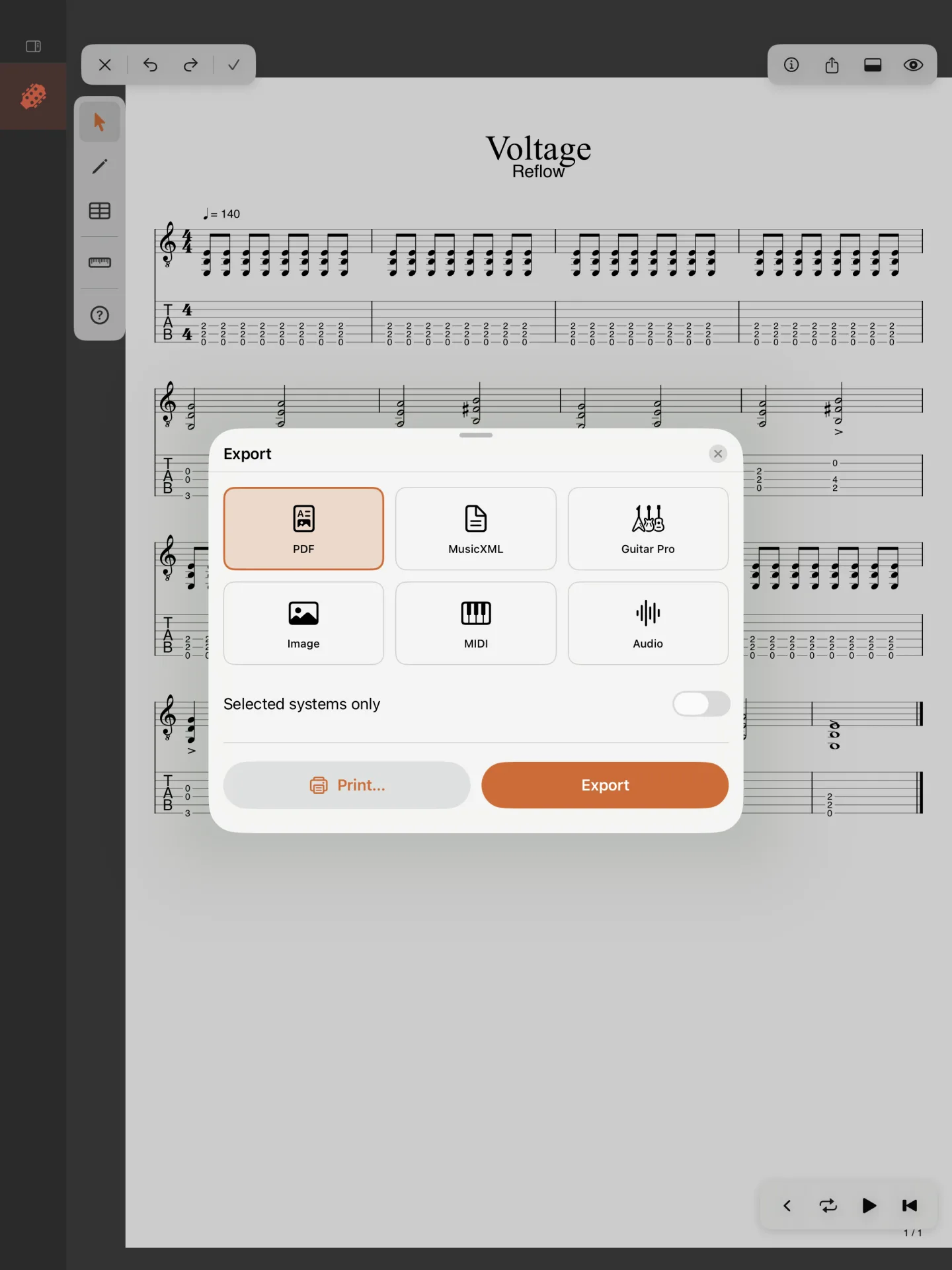
- Set its options (below), then tapclick Export.
- Send the file: once it says Ready, tap the file’s card to share it: Save to Files, AirDrop, Mail or another appShare sends it to another app, Save As… saves it in a folder.
The formats
- PDF: the score’s pages, as they print. Selected systems only exports just the lines of the score that hold the bars you selected (select more than one bar first; the sheet says which, Measures 3–8).
- MusicXML: for other notation apps (Dorico, Sibelius, MuseScore, Finale).
- Guitar Pro: Guitar Pro 5 (.gp5) or Guitar Pro 7 (.gp). The one chosen is kept, in Settings › Export too.
- Image: PNG, a picture to share online, or SVG, a drawing that stays sharp at any size. Use score theme colors draws it in the score’s colours on screen; Transparent background leaves the paper out, for slides and web pages; Selected systems only, as for PDF.
- MIDI: the notes, their timings and the score’s tempo, for a DAW or another app. Turn off Include tempo changes or Include time signatures to keep only the first tempo or time signature.
- Audio: the score played by Reflow’s instruments, as WAV (lossless, a larger file) or M4A (compressed, a smaller file).
Which tracks
For every format but PDF and Image, Tracks chooses what goes in:
- Skip muted tracks leaves out the tracks you muted.
- Selected tracks only exports only the tracks you selected.
Printing
Choose PDF in the Export sheet and tap Print… beside Export: the system’s print
options open with the score’s pages.
File › Print… ⌘P opens the Mac’s print
dialog with the score’s pages; File › Page Setup… ⇧⌘P sets the paper.
In the free version, exports and printing hold the score’s first 10 bars (the sheet says so at its top), and a PDF, an image or a print carries a light watermark. The unlock lifts both (see The unlock).